Save your Company Tax Return and finish it later
Short version. In SimpleCompanyTax, add your company, then select Save Progress, Next or Back to save an unfinished Company Tax Return (CT600) to your account. You can finish it later on another device. Check for Saved to your account before closing the page.
Go to the steps and entry details
On this page
1. Save and return later
You can save before completing your profit and loss or balance sheet. Empty fields remain empty so you can finish them later.
- Sign in and add the company before starting its filing.
- Enter your prepared figures in Financial Data. You can leave unfinished fields blank.
- Select Save Progress at the top of the wizard or beside the navigation buttons at the bottom. Selecting Next or Back also saves the form to your account.
- Check the save message at the top or bottom. Wait for Saved to your account at followed by a time and BST or GMT. These are UK times even when you use the service from another country.
- When you return, sign in to the same account and select Resume filing on the company card or openView details and use Resume filing on the company record.
For a long accounting period with two Corporation Tax returns, save your allocation answers too. Your entered split and second-return answers are kept with the form. If you later change amounts or dates, check the displayed split again before proceeding.
For example, you can enter £18,000 turnover, leave creditors blank, save, and complete the balance sheet the next day. A blank creditor field does not become a £0 answer.
If the company appears in both your Personal and Practice workspaces, open its card in the workspace you want to use. Each record keeps its own saved work. New filing and Resume filing use the record you selected. If an older link asks you to choose a workspace, return to the dashboard and open the company there.
2. Check that your figures are saved
There is no automatic saving to your account. After another edit, the indicator says Changes not saved yet. Select one of the three save controls again.

If you see Saved in this browser only, add the company first. That copy belongs to this browser tab and is not available on another device.
If saving fails, keep the page open, check your connection and select Save Progress again. If browser storage also fails, keep any unsaved notes before closing the page.
3. Reopen or start again
On the company card, hover over Resume filingto check the saved accounting period, date and UK time. Select the small arrow beside Resume filing to open Filing options, containing only Start new filing. Select the arrow again or tap outside to close it. The company record also shows the period and save time beside Resume filing. A saved amendment is labelled separately. Resume opens the latest account copy of that selected filing, including saves accepted after the card loaded. Previewing documents does not change the figures-save time. Older filings may show Saved time unavailable.
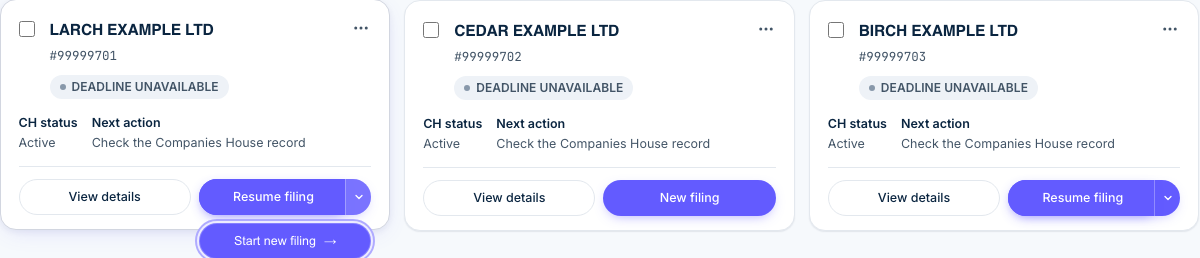

Each company card has two controls: View details and either Resume filing or New filing. If you have saved work but want to start another filing, open the arrow beside Resume filing and select Start new filing. This opens the new-filing workflow while keeping a saved amendment available to resume. View details opens the company record. On that page, the purple Start new filing button remains in the header. New filing opens the new filing workflow rather than an existing amendment.
Starting a new filing restores an unfinished form you saved for that company. The notice gives its saved date and time. Select Start again with a blank form if you want to clear that unfinished form.
For a fictional long period from 1 April 2024 to 30 September 2025, the saved label shows the whole accounts period. Resume keeps your entered allocations for both Corporation Tax returns. An unfinished date shows Period not completed and you can resume to finish it.
Use one tab while editing. If you save different figures for the same filing from two tabs or devices, the last accepted save becomes the account copy.
When you open Review, your latest saved edits pass through the wizard checks. If an answer is missing, finish it in the visible field and proceed. Saving progress does not submit a return. Review the figures and documents before authorising the filing.